
Master Smooth Animations in DaVinci Resolve 21 with FFlow (The Ultimate Free Flow Alternative)
Master smooth animations with FFlow, the 100% FREE Flow plugin for DaVinci Resolve 21. Learn to install & use this pro easing tool to speed up your workflow!
If you are a motion designer or video editor using DaVinci Resolve, you know that Fusion’s curve editor can sometimes be a bit tedious to work with. While there are popular paid plugins like MT Flow or Ease and Wizz that help automate easing and curves, not everyone is ready to invest in paid tools.
In this post, we’re diving into FFlow, a powerful and 100% FREE alternative created by Cloud VFX. This plugin is a game-changer for anyone looking to speed up their animation workflow without spending a dime. Click here to download
What is FFlow?
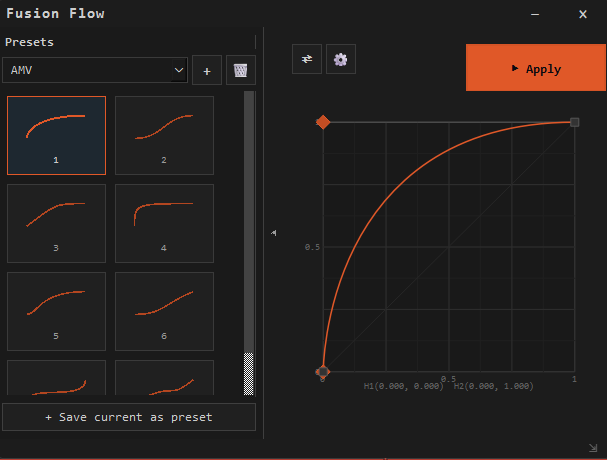
FFlow is a standalone utility (executable) that communicates directly with DaVinci Resolve’s Fusion page. It allows you to apply complex easing curves to your keyframes with just a single click. Instead of manually dragging handles in the Spline editor, you can choose from a variety of presets to get that perfect "bounce," "elastic," or "smooth" motion instantly.
Key Features of FFlow
One-Click Apply: Select your node, pick a curve, and hit apply. It’s that simple.
Custom Presets: Not only does it come with built-in presets, but you can also create and save your own custom curves for future use.
Import/Export: Moving to a different system? You can export your saved presets and import them anywhere.
"Always on Top" Mode: A crucial feature that keeps the FFlow window visible even while you are clicking around inside DaVinci Resolve.
Customizable UI: It offers different themes (like 'Fuse' or 'Fluids') and allows you to import custom JSON theme files to match your aesthetic.
How to Get Started
Download: You can find the download link in the video description. It comes with a clear instruction manual.
Launch: Simply run the
ff.exefile. There’s no complex installation; it’s a portable tool.Setup in Resolve: Open DaVinci Resolve and head to the Fusion page.
Configuration: In FFlow settings, enable "Always on Top" so the tool stays handy while you work.
Step-by-Step Usage
Step 1: Create your animation using keyframes (e.g., a Transform node moving a square).
Step 2: Open the FFlow interface.
Step 3: Select the curve preset you like.
Step 4: Click "Apply". A popup will ask which parameter (like Center, Size, or Angle) you want to apply the curve to.
Step 5: Watch as your Spline editor automatically updates with the perfect curve!
Conclusion
FFlow is an essential tool for any DaVinci Resolve editor looking to enhance their VFX and motion graphics. It’s lightweight, free, and incredibly efficient. If you’ve been struggling with manual curves, give FFlow a try and watch your productivity soar.